
Watch this video tutorial on how to setup your receipts printer.
You must be logged into the Admin Panel to check the receipt printer settings.
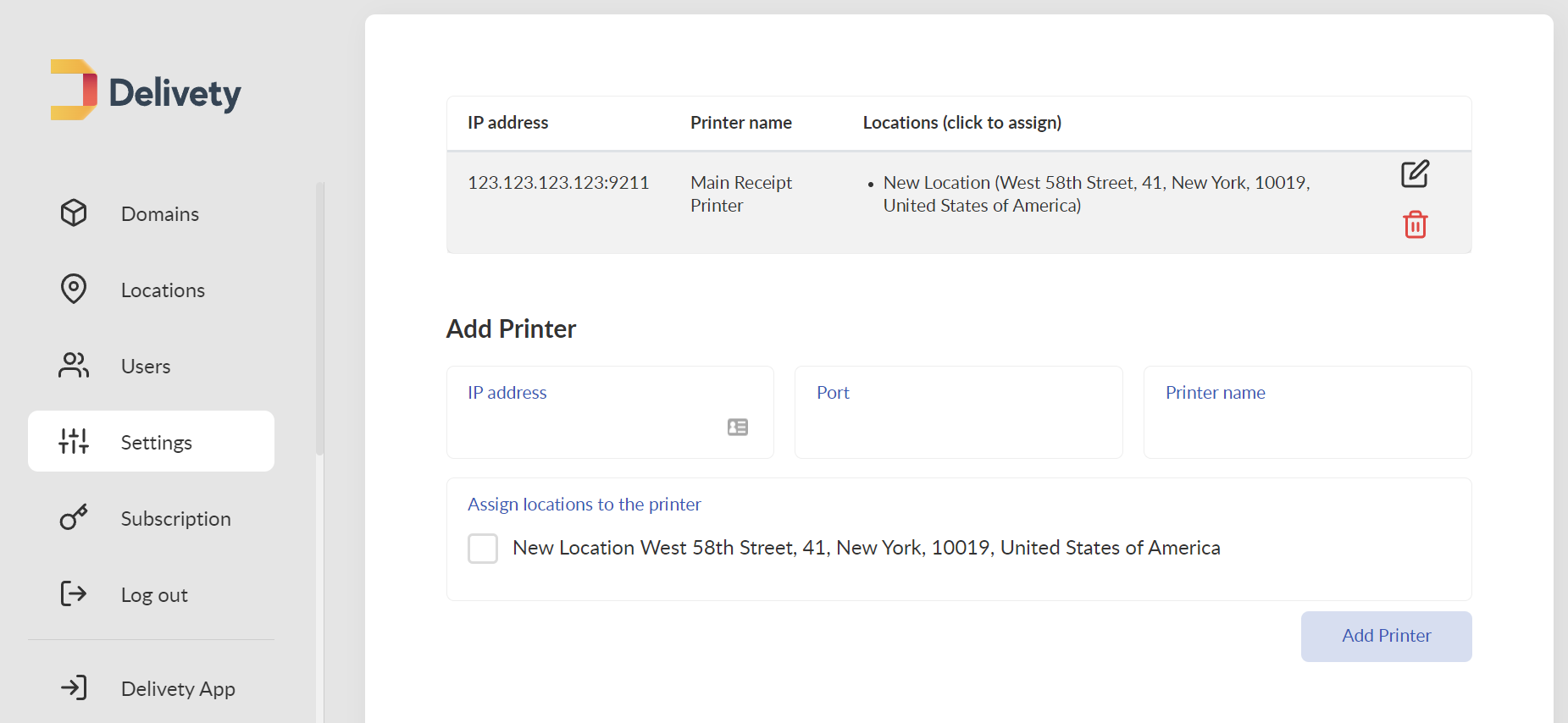
Select Settings on the left and scroll down to the PRINTER MANAGER section:
- Check if you have a receipt printer set. If not, follow the instructions.
- If you already set up a printer in the PRINTER MANAGER, but the receipt printer still is not printing, then check if the following settings have been set up properly:
2.1. Check the IP address of the printer. This has to be the public IP address of your printer. The public IP address is an IPv4 address that is reachable from the internet. You can check your public IP address by opening https://ipinfo.io/ website on any device (a PC, or a tablet or a phone) which is connected to the same local network (WiFi) as your receipt printer.
2.2. Check if your public IP address is a static one. You need a static IP address to reach your printer without changing its IP address each time your ISP (Internet Service Provider) assigns you a new public IP address. Ask your network administrator or ISP for assistance if you don't have a static IPv4 address.
2.3. Check if your receipt printer port is forwarded properly on your router. Open your router’s NAT forwarding settings and designate a specific external port to reach your precept printer’s local IP address and the port. For example, if your public IP address is 45.63.58.47 and your receipt printer’s local IP address is 192.168.0.199 and the internal port is 9211*, then you may set up an external port 65211**(e.g.) forwarding to 192.168.0.199:9211 on your router. In that case you will have to enter 45.63.58.47 as the IP address and 65911 as the port number in the Delivery Printer Manager to set up your receipt printer properly/ Alternatively, ask your network administrator to set up NAT forwarding on your router or contact us if you need any help with your printer setup.
_______________
* The most common destination printer ports are 2501, 3911, 5001, 9100, 9101, 9102, 9211 and 9600; however, some printers could use other ports. Refer to your printer manual or ask your network administrator for your printer port number.
** You might use a different external port (other than internal) for additional security.
Comments
0 comments
Please sign in to leave a comment.