
You must be logged in as a Data Export Dashboard user to export the modifiers movement data. This tab allows you to export detailed data on modifiers sold within a time frame.
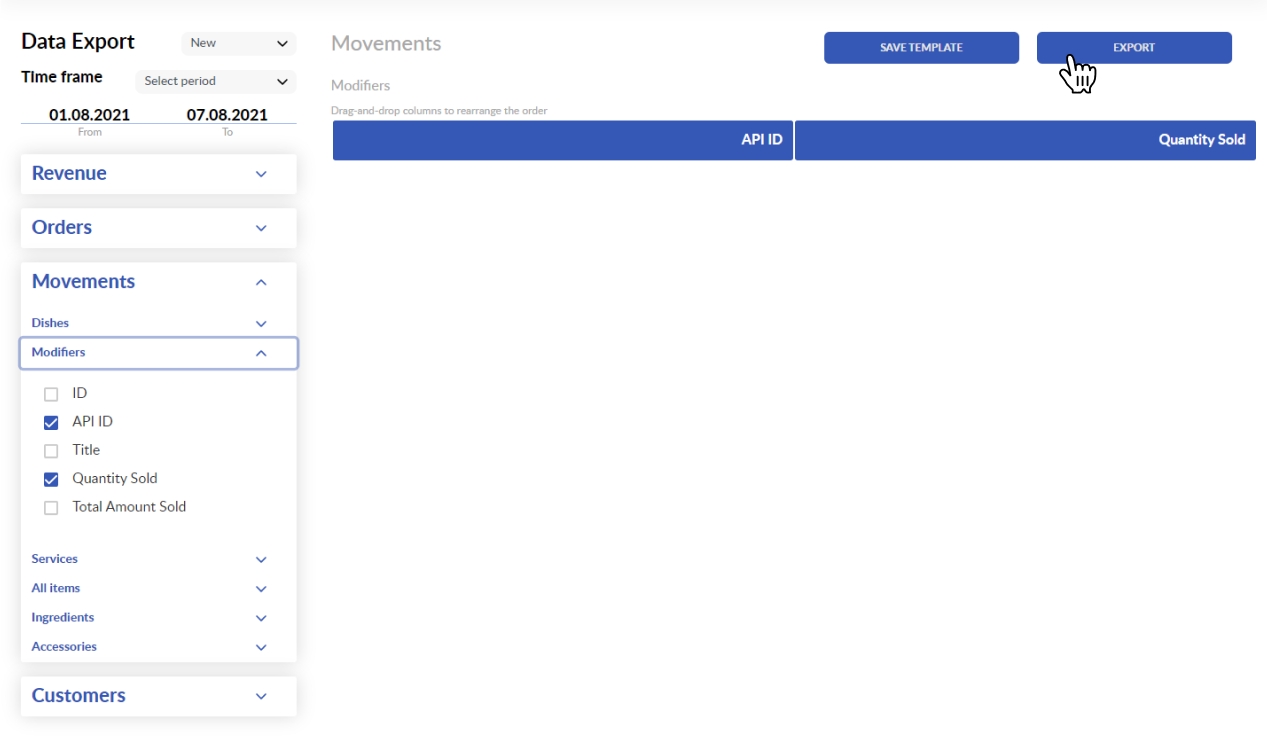
Select the Time frame to export the data for and click on the Movements tab on the left pane, then tap Modifiers from the drop-down list. Tick the checkboxes (for instance: API ID, Quantity Sold). Once you tick the checkboxes, the appropriate table columns appear in the right pane. You can drag and drop the columns in the right pane to rearrange them to match the requirements of the application you would like to export the data to. Click on the EXPORT button once you are done arranging the columns.
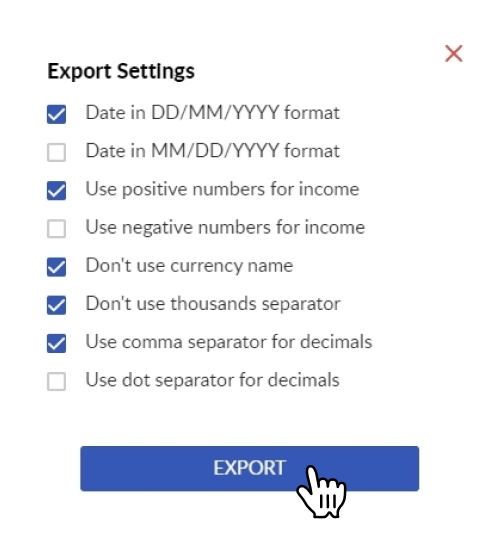
Tick the appropriate checkboxes in the Export Settings to adjust the exported data to the requirements of the application you would like to export the data to and click on the EXPORT button. A .csv (comma-separated values) file will be saved to your default downloads folder.
Also, you can click on the Save Template button to skip all the operations above in the future. Next time, you can export the data in a couple of clicks by selecting an appropriate template using the templates selector next to the Data Export title.
Comments
0 comments
Please sign in to leave a comment.