
Here at Delivety, we use the following Order Statuses to describe the current stage of each order journey:
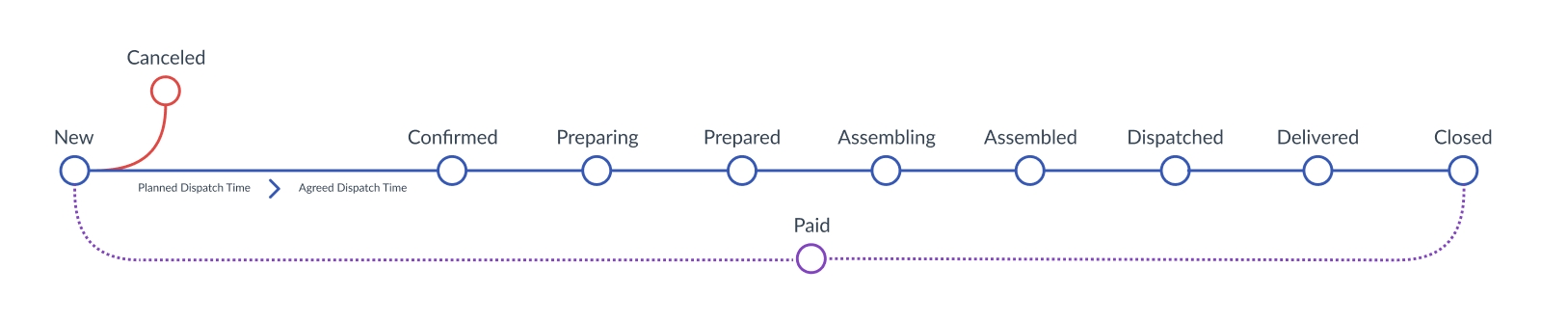
The New status shows that the order has been just received and awaits the Planned Dispatch Time time from the kitchen (if the necessity of the Planned time is not disabled in the Admin Panel).
The order gets the Confirmed status once both the kitchen enters the Planned Dispatch Time time and the operator fills in the Agreed Delivery Time confirmed with the customer. In other words, the order is ready to be prepared now.
The order gets the Preparing status once the kitchen has prepared at least one dish of the order.
The order gets the Prepared status once the kitchen has prepared all the order dishes.
The order gets the Assembling status once the order assembler has assembled at least one dish of the order.
The order gets the Assembled status once the order assembler has assembled all the order dishes. In other words, the order is ready to dispatch now.
The order gets the Dispatched status once the courier gets the order to deliver it to the customer. In other words, the order is delivering now.
The order gets the Delivered status once the customer receives the order.
The order gets the Canceled status once the operator cancels it by tapping the canceled switch.
The additional statuses (like Paid/Unpaid and Closed) show extra states of the order:
The Unpaid status shows that the order is yet to be paid.
The Paid status shows that the order is paid in full.
The order gets Closed status automatically (if it’s not disabled in Admin Panel settings) once the order is both Paid and Delivered. No further changes can be made to the order once it gets the Closed status.
_____________________________
Next Step:
Monitoring Your Performance with Reports & Analytics Dashboard
Previous Step:
Dispatching, delivering, closing and canceling the orders
Learn more:
How to change the order status
💡 How to accept food delivery orders over the phone using the Delivety Operator Dashboard:
Comments
0 comments
Please sign in to leave a comment.