
The Menu Builder is the visual interface where you can work with the menu: create menu sections, dishes, modifiers and delivery rates as well as assign prices and arrange them in the menu.
In order to use the Menu Builder, you have to log into the Delivety App as a user who has the Menu Builder dashboard assigned. Log in to the Delivety App using the URL your-domain.delivety.com/app (replace your-domain with your Delivety domain name).
Recommended Devices
The Menu Builder can be used on any PC, Mac, iPad or Android tablet as well as on any iPhone or Android phone. We recommend using any computer PC or Mac to work with the Menu Builder comfortably and effectively. Alternatively, you can use any mobile phone to work with the Menu Builder as it is fully mobile optimized.
Menu Builder User Interface Overview
The Menu Builder consists of two interface elements: Items List on the left and Menu on the right
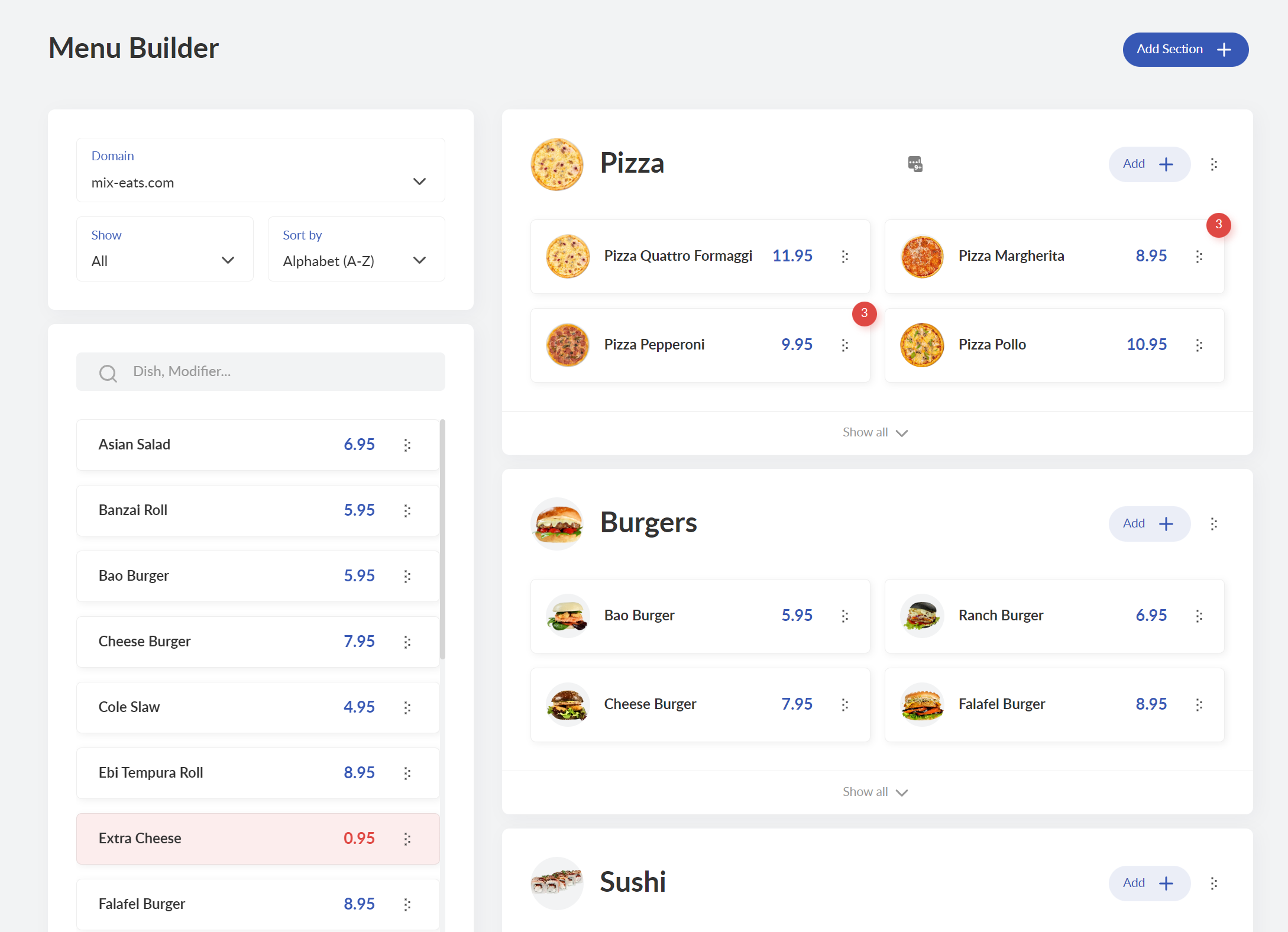
The Items List shows the available items (dishes, modifiers and delivery rates) in a form of cards on the left pane.
Once you tap an item, the Item Card opens.
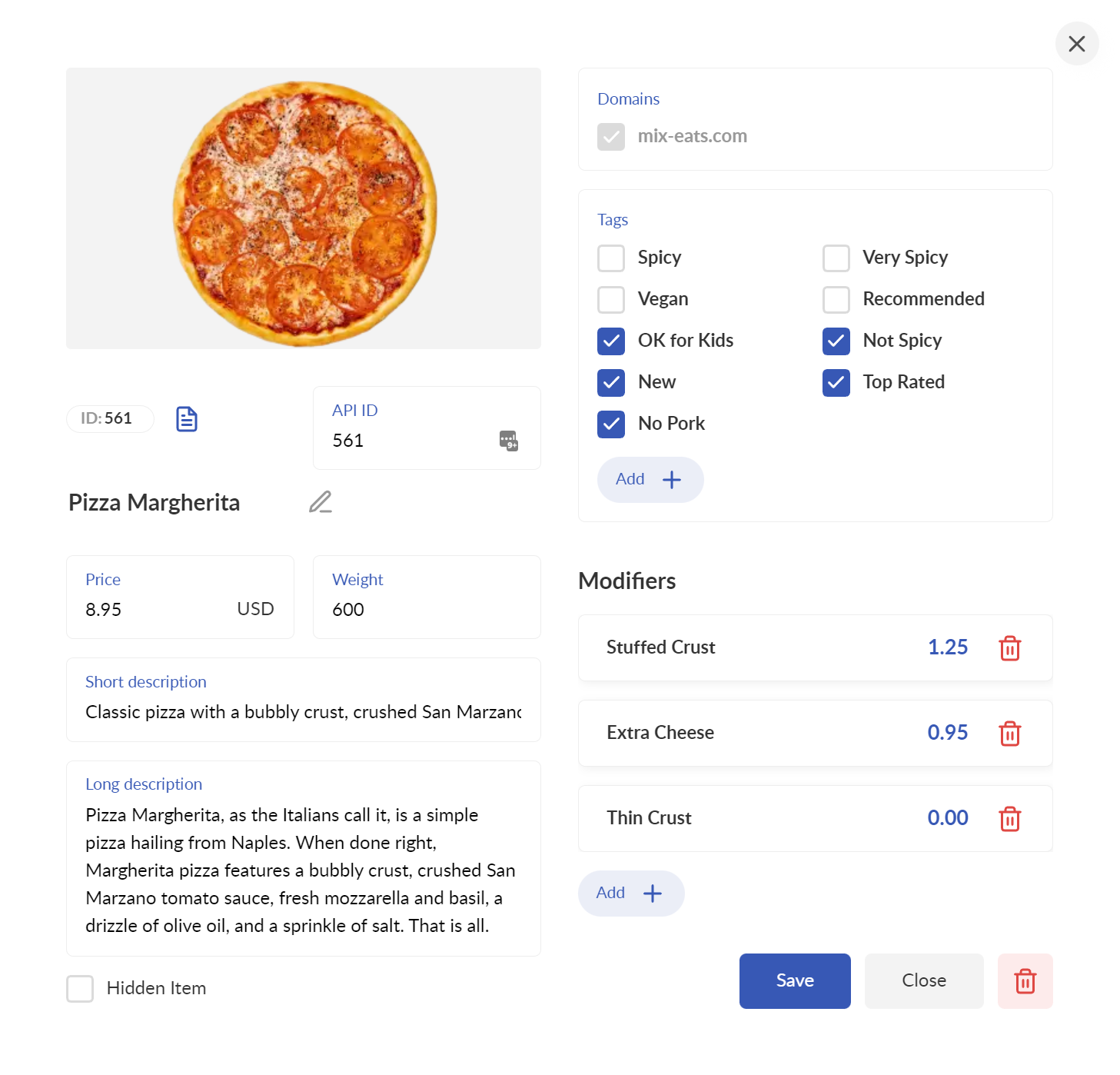
Item Card can be a Dish Card, a Modifier Card or a Delivery Fee Card
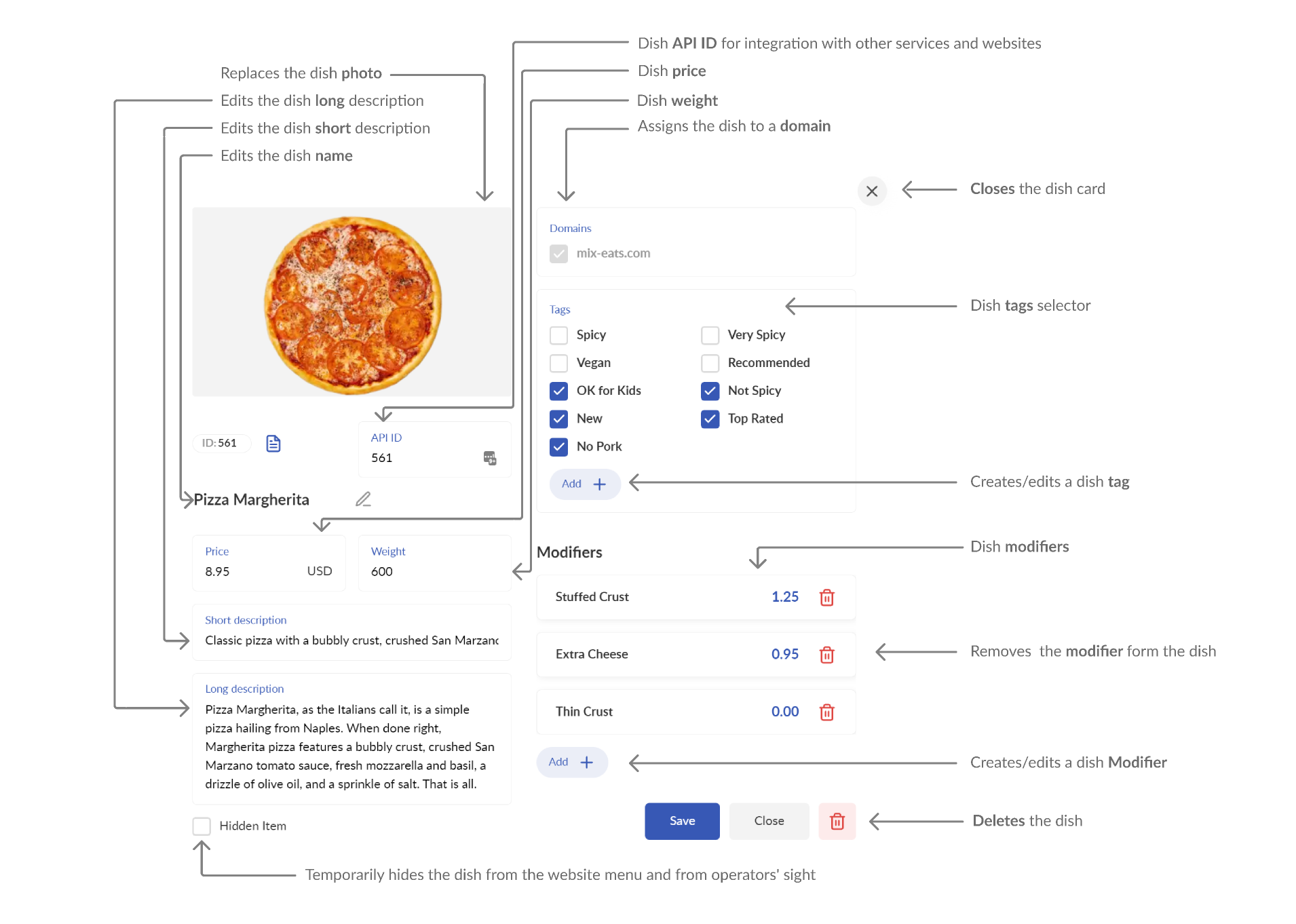
Dish Card contains the following elements:
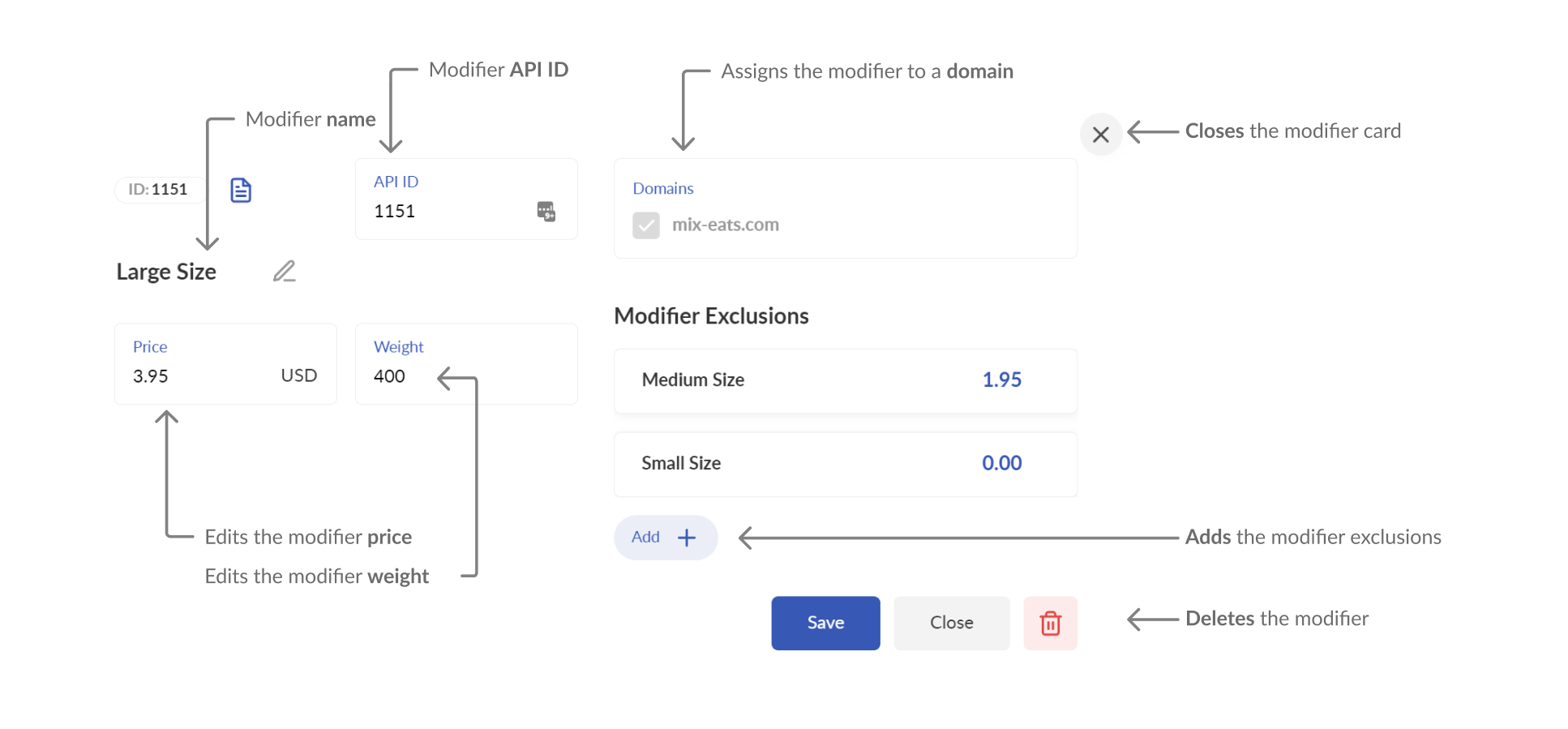
Modifier Card contains the following elements:
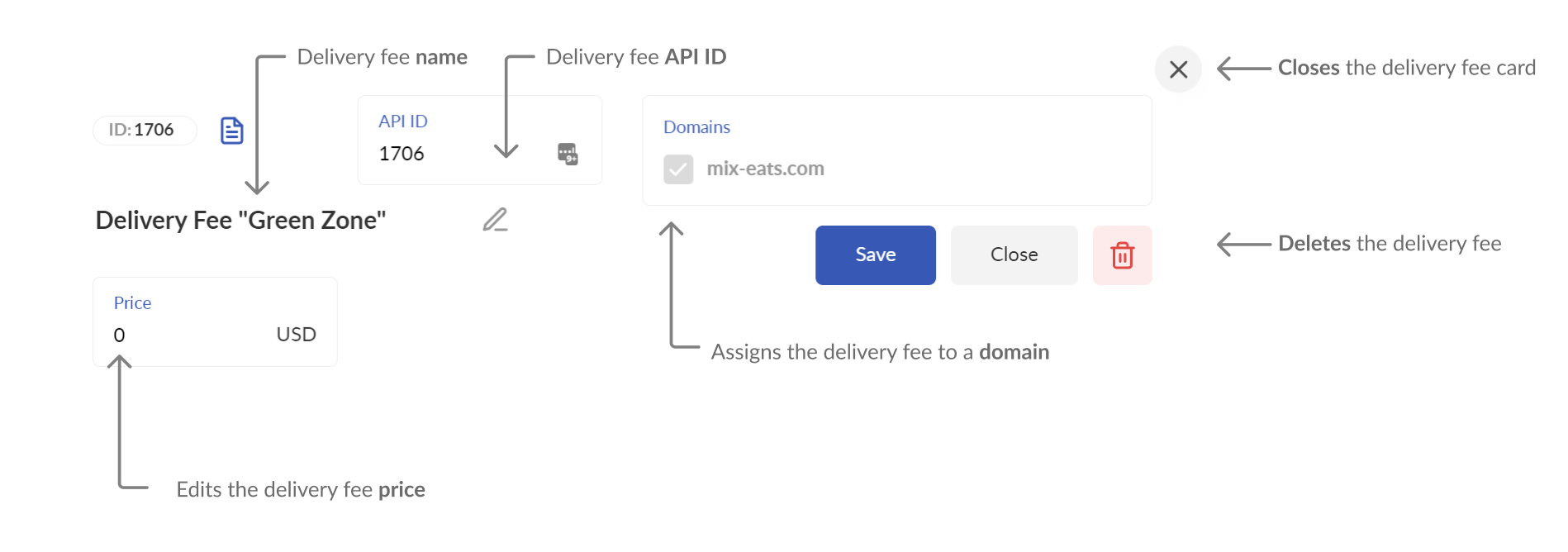
The Delivery Fee Card contains the following elements:
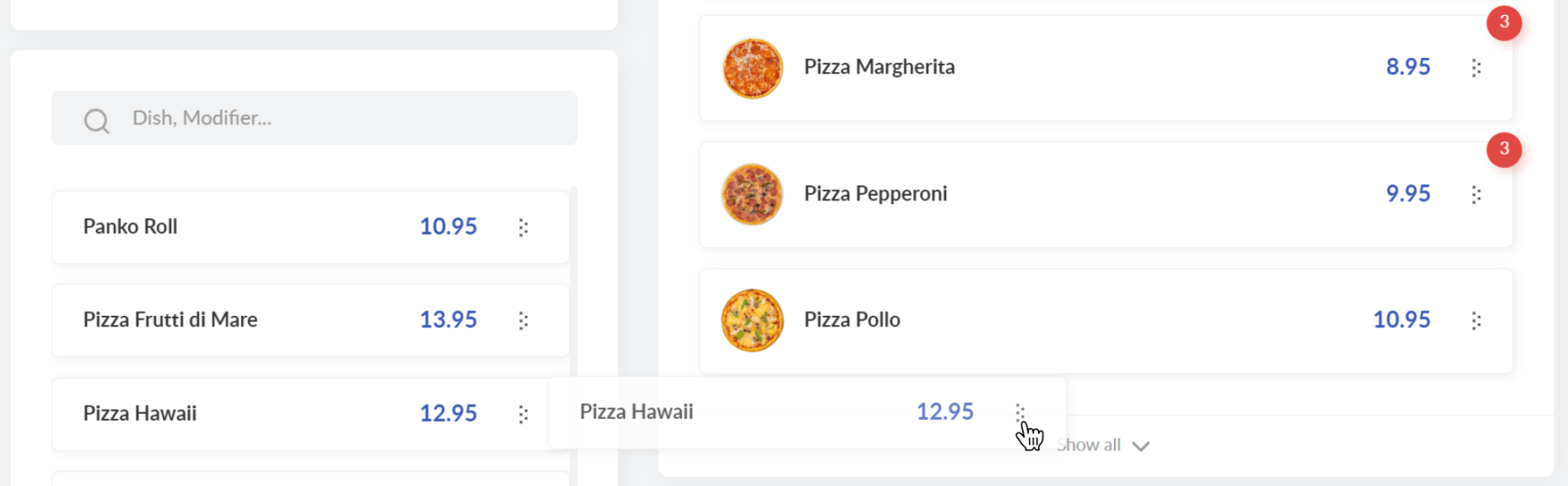
Also, you can drag and drop the items to the menu on the right pane and vice versa by clicking and holding the five-dots icon.
You can search the items using the search bar located on the left pane or use the Domain, Items Type and Sort by selectors to help you to refine search results.
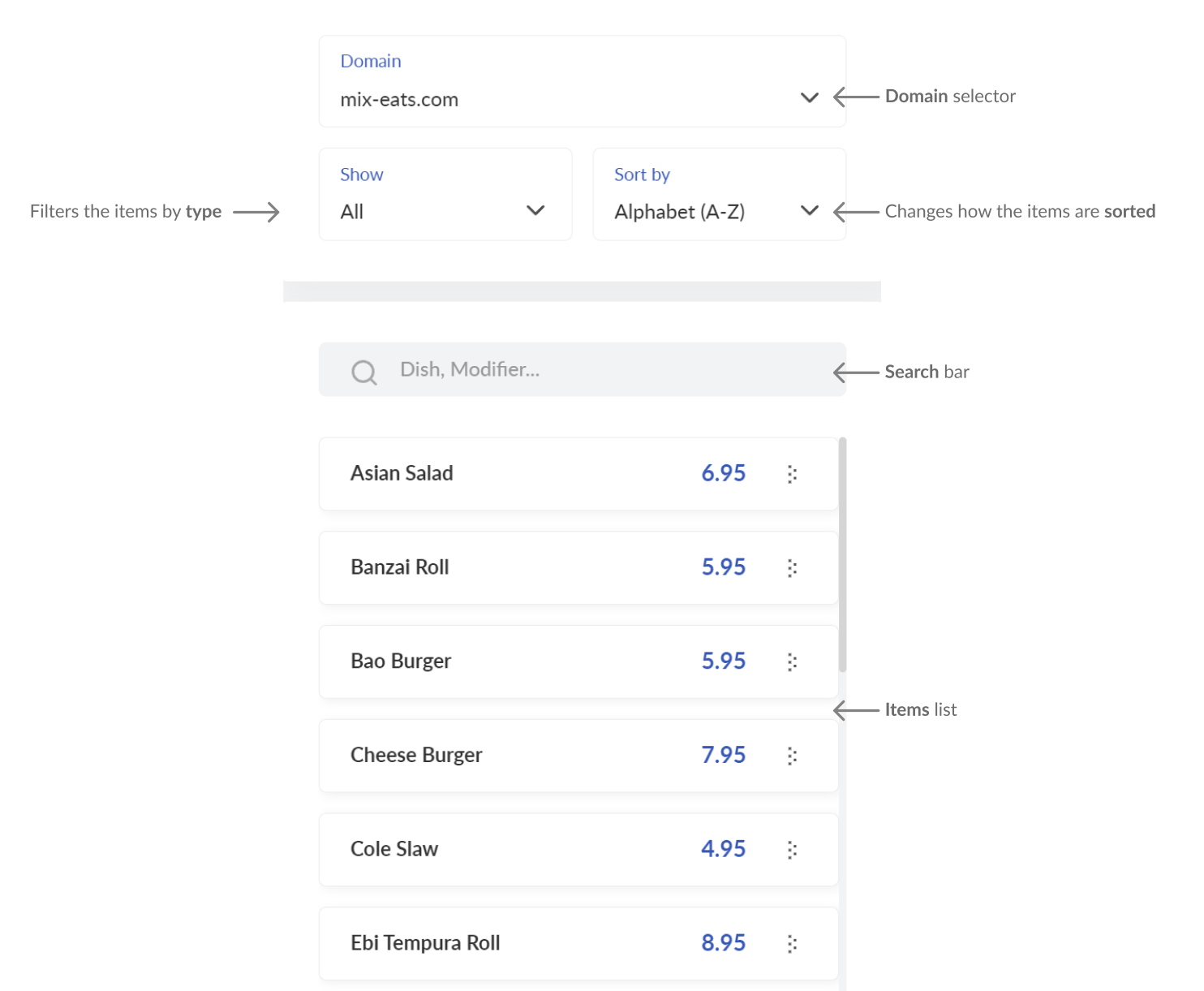
Select the Domain to show the menu which belongs to that particular domain.
Filter what type of menu items to Show:
Select Dishes to show dishes only;
Select Modifiers to show modifiers only;
Select Delivery Rates to show delivery rates only;
Select Not in Menu to show the items that are not in the menu currently;
Select In Stop List to show the items that are currently in the Stop List.
Sort the output alphabetically or by price with the Sort by option or search for the specific menu item using the Search bar.
The current menu is shown on the right pane. You can easily drag and drop items and/or sections to change their order. Once you rearrange the menu items in Menu Builder, they will appear that way on your website automatically if you are using our Food Ordering Website feature.
Creating Your Menu
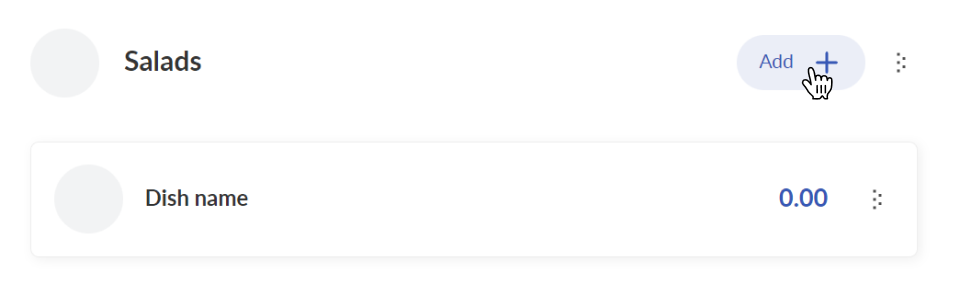
Once the Menu Builder opens click on the Add a menu section button and create all sections of your menu(Burgers, Salads, Sides, Beverages, etc. ).

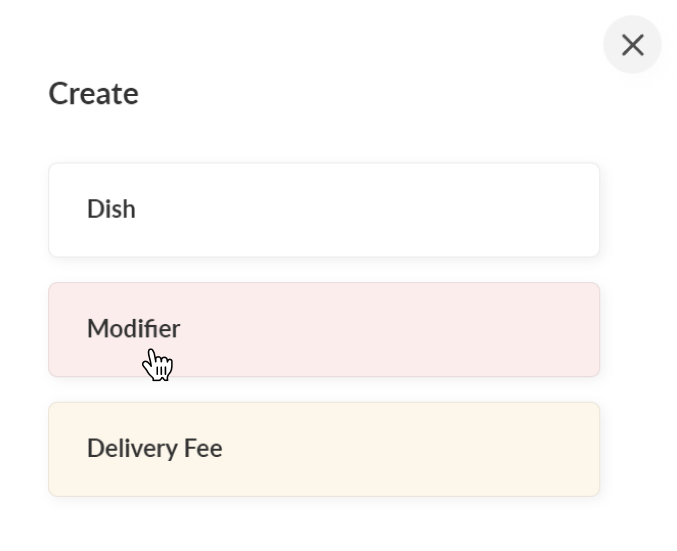
Then click the Add button..
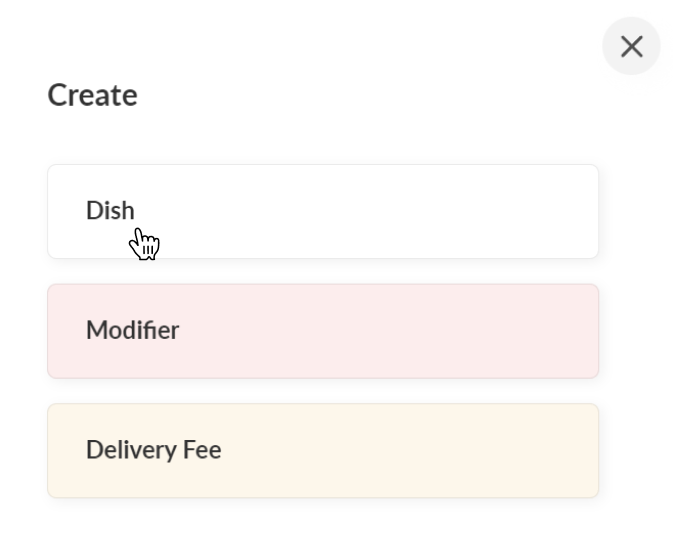
...and select Dish.
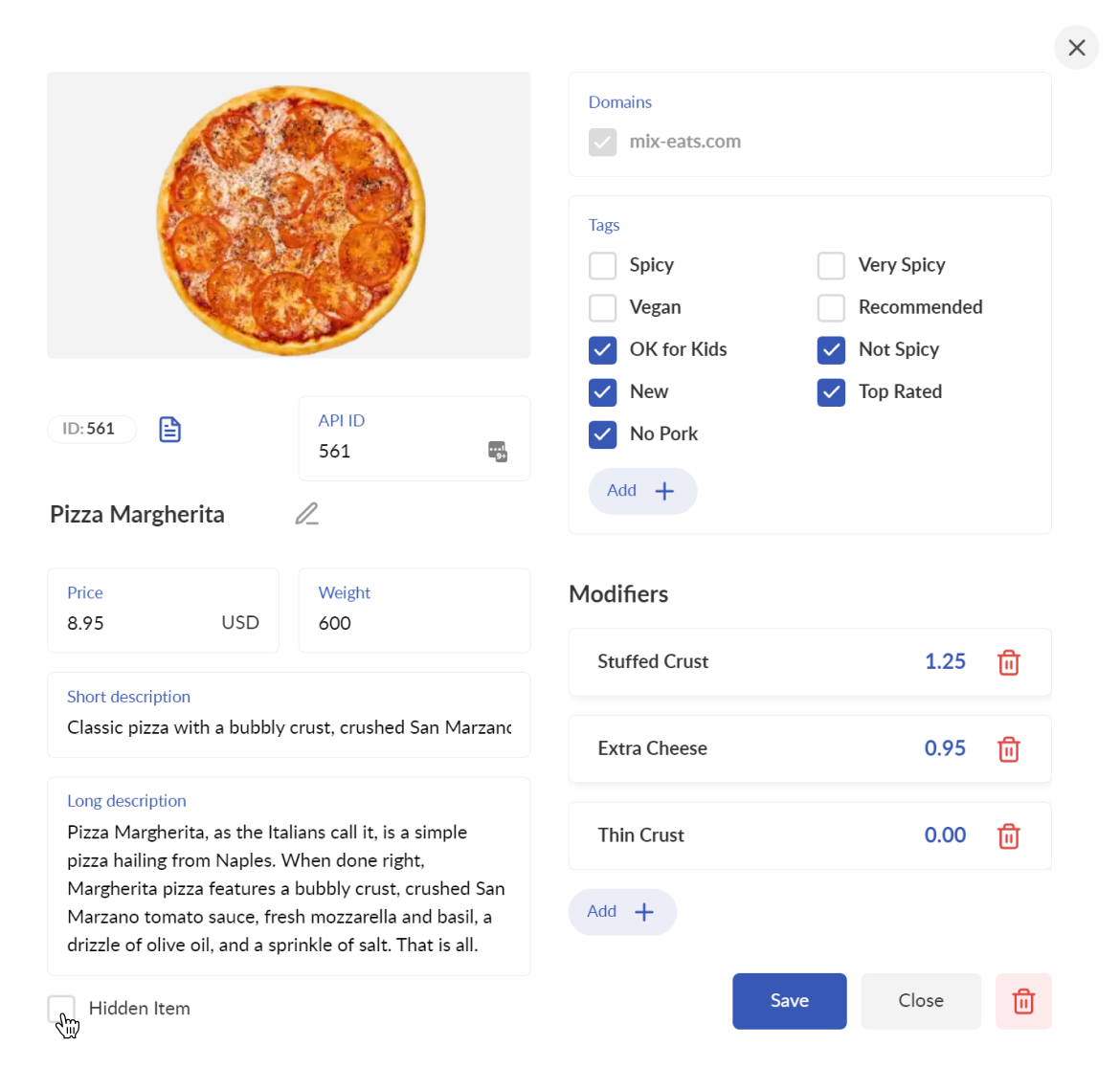
This will open a dish card in popup. In the dish card, you can edit the dish price (which is set at zero by default), its short and long description, and set the dish tags (spicy, vegan, gluten-free, top-rated, etc.). Also, you can upload the dish photo and edit its name.
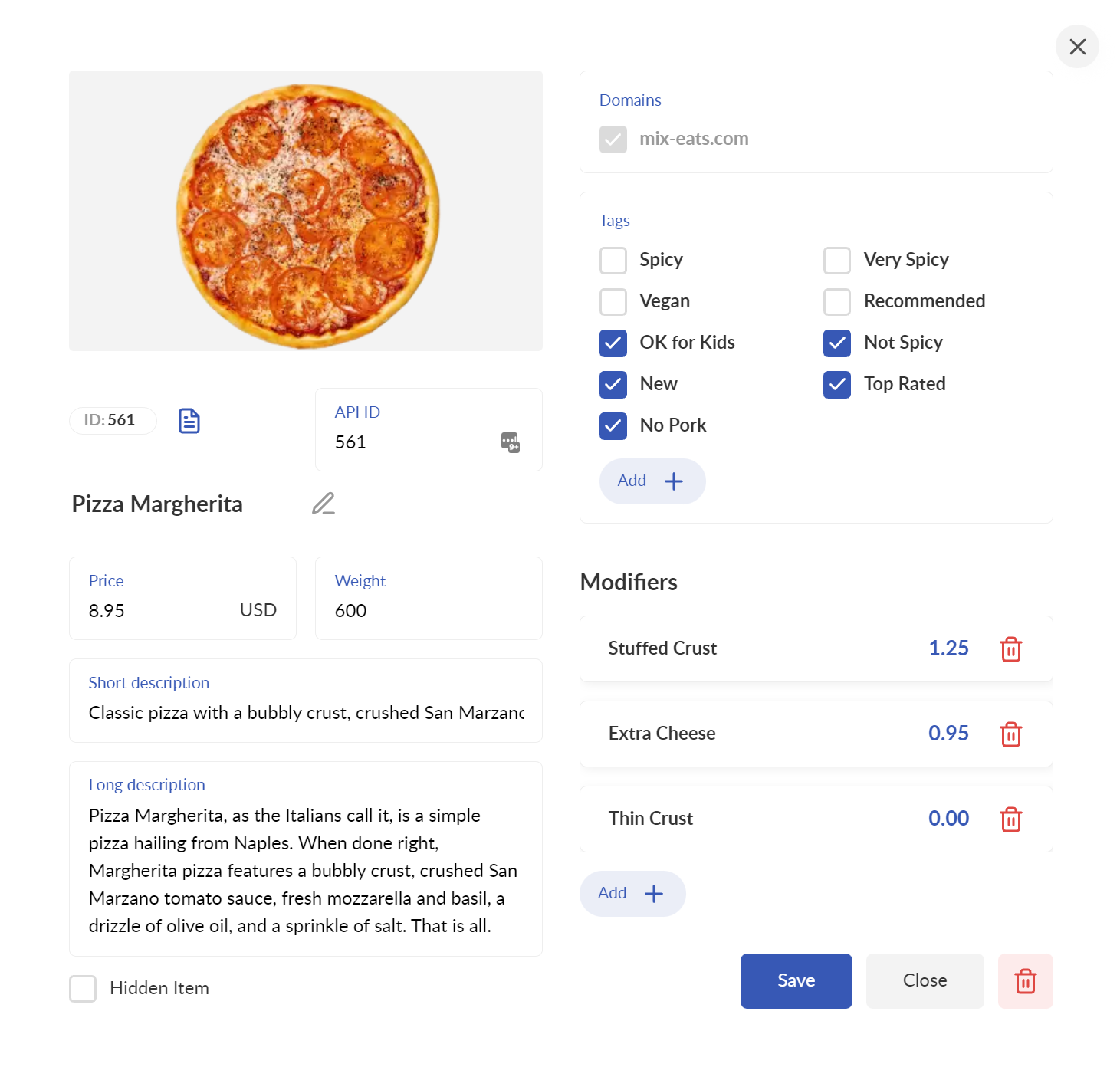
You can click on the Eye icon (next to Domains icon) to view the dish recipe (you can edit the dish recipe using the Recipe Editor Dashboard only). Also, you can change the domain the dish belongs to (if you have multiple brands/domains) by clicking on the Domains icon under the dish name (it looks like a 3D box).
Once done editing the dish properties, click on the Add button in any menu section to create the next dish.
You can set the menu section's thumbnails by clicking on it and selecting one of the dish photos.
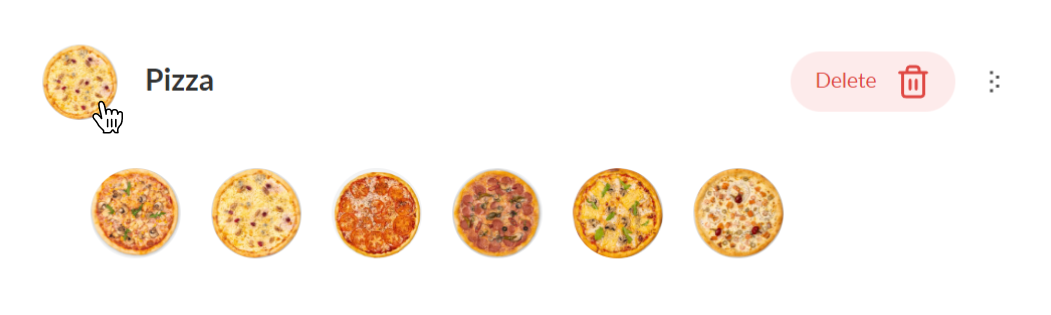
If you are using our Food Ordering Website, the section thumbnail you have selected will show up as the ordering website menu section thumbnail.
Likewise, you can also add dish modifiers by clicking on the Add button in any menu section.
You can also add modifiers to your dishes directly by pressing the Add button in the Modifiers tab of the dish card.
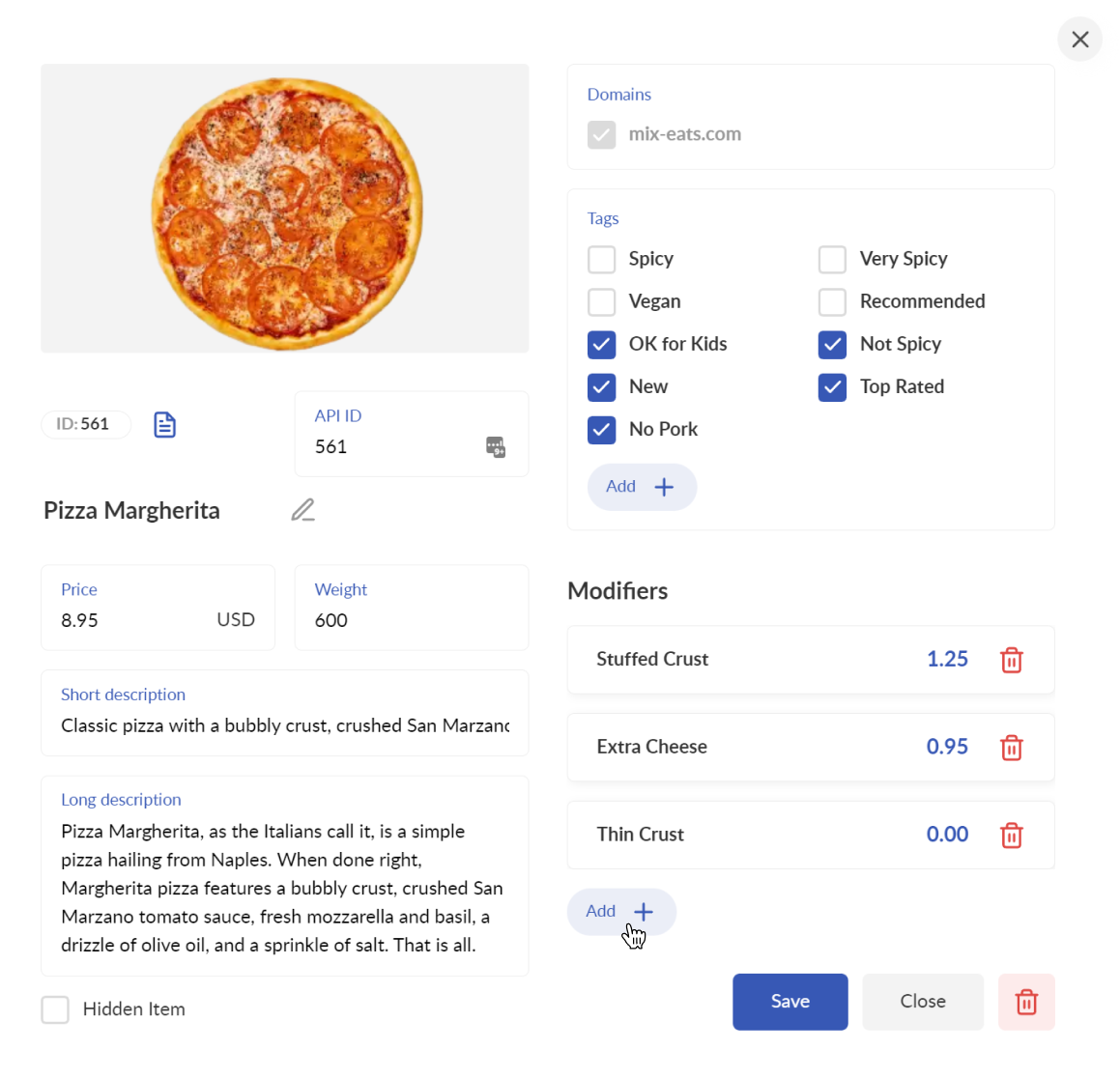
Modifiers allow your customers and operators to opt for: dish extras (e.g. extra cheese, extra sauce), dish sizes (e.g. small, medium, large), or dish options (e.g. replace beef patty with chicken one).
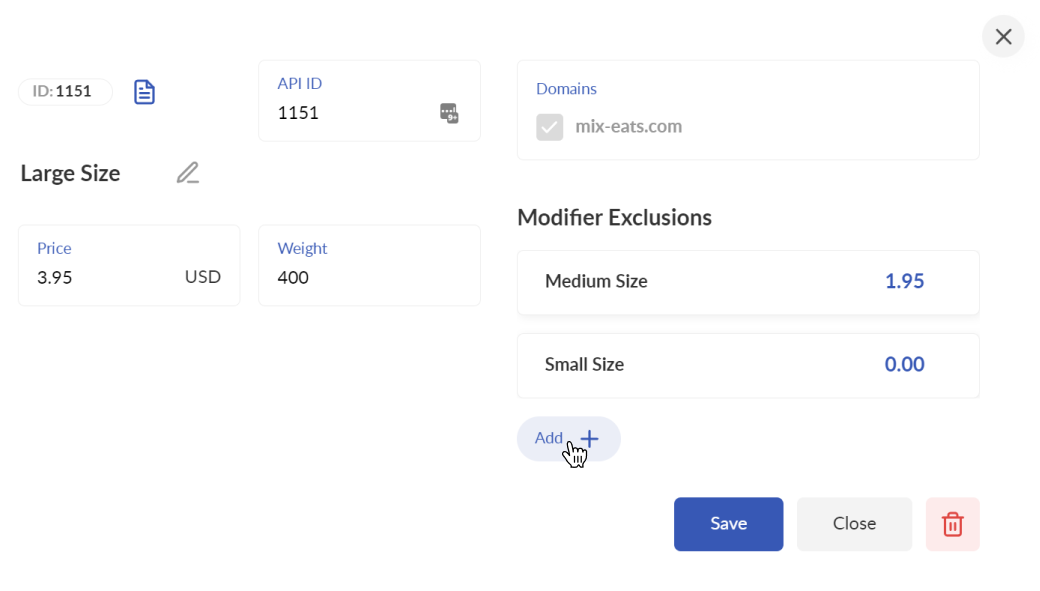
Once you create a modifier, you can configure how it can be used:
Set the mutual exclusions of the modifier by selecting the modifiers that are not allowed to combine with this modifier (more than one size of pizza, or more then one patty for a burger, etc.)
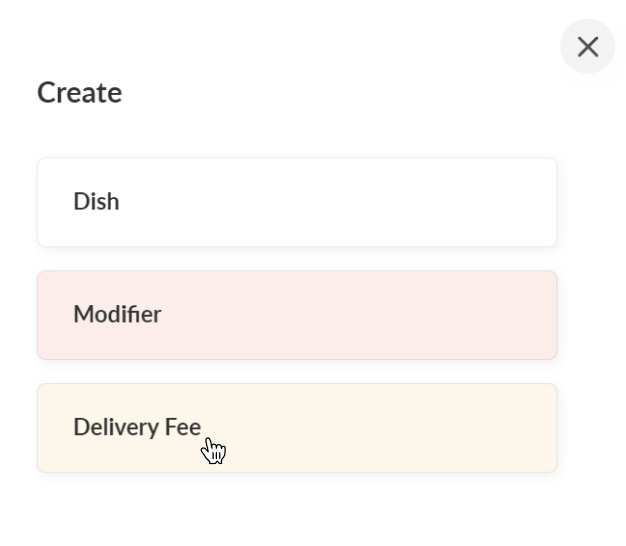
You can also add delivery fees by clicking on the Add icon in any menu section. Delivery fees allow your operator to add the delivery fees to the order. You can skip adding the delivery rates if you don’t need them.
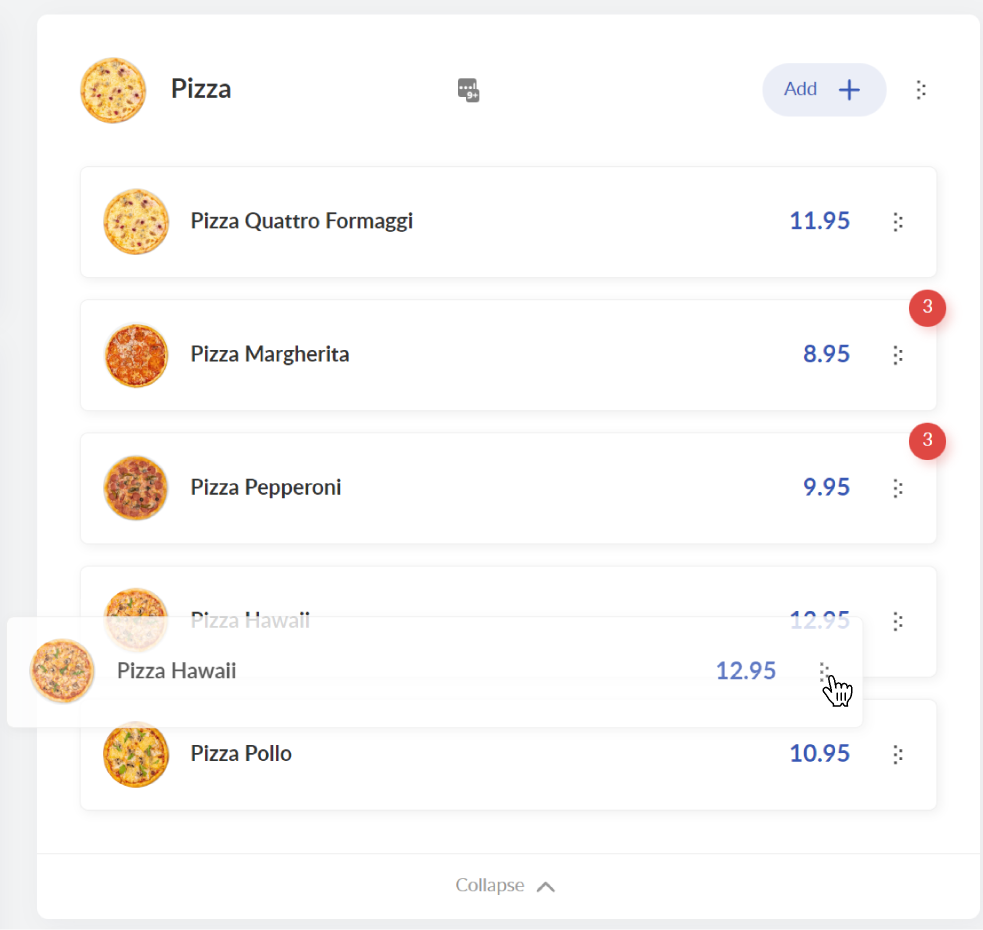
The sections and dishes in your menu are sortable with the drag-and-drop function (click on the five-dot icon and hold to move the dish inside the menu section or even to another section). Once you rearrange the menu items in Menu Builder, they will appear that way on your website automatically if you are using our Food Ordering Website feature.
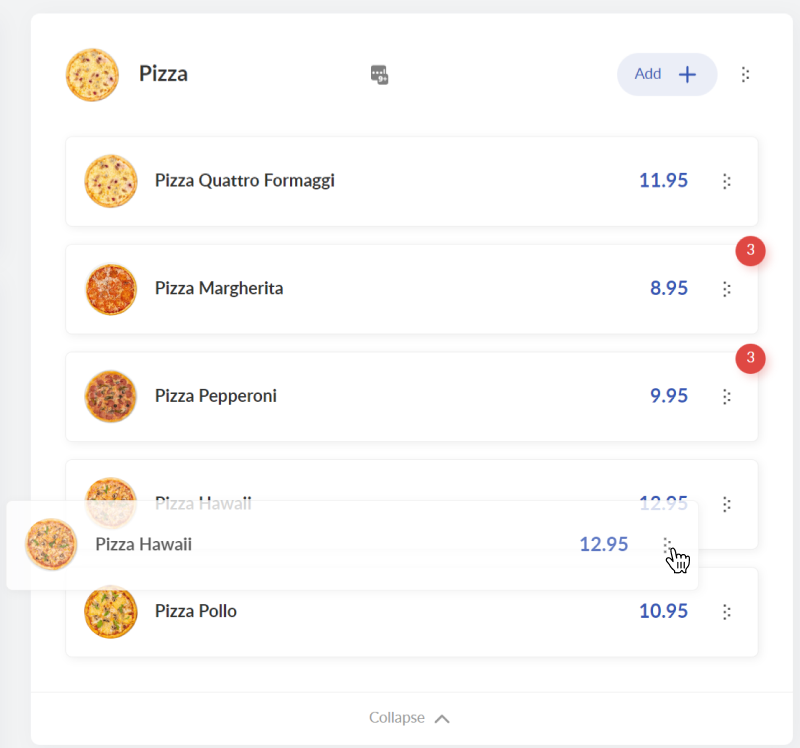
You can easily hide items from the menu by just dragging and dropping them to the left pane. Also, the hidden items will temporarily disappear from your website (if you are using the Delivety Ordering Website feature) until you unhide them. To unhide any menu item, simply drag and drop it back from the left pane to the appropriate menu section. You can also hide dishes by ticking the Hidden Item checkbox in the dish card.
Frequently Asked Questions
How to enable the Full-screen mode
How to integrate your ordering website to Delivety
How to create your own food ordering website with Delivety
How to delete a dish from the menu
How to remove a dish temporarily from the menu
How to set or change a price for a dish
How to add or edit the dish descriptions
How to add or remove the dish tags
How to change the menu section thumbnail
How to rearrange dishes in the menu
How to rearrange the sections in the menu
How to add a modifier to the menu
How to forbid combining some modifiers in the dishes
Comments
0 comments
Please sign in to leave a comment.